Skip to content
On-screen product training

Make every employee fluent in your product.

OnScreenBot trains your team inside your own web application. People follow guided steps on the real screen, practise on your test site, take assessments that show what they can do, and stay current as the product changes.

14-day free trial · No payment details · Works in Chrome

Guided ModeEnterprise

Where do I say why the price changed?

OnScreenBot

Use the Change note field under the price.

Assessment 2.3Passed
91.6/ 100 · pass line 80

Sample data from a demo workspace.

What OnScreenBot is

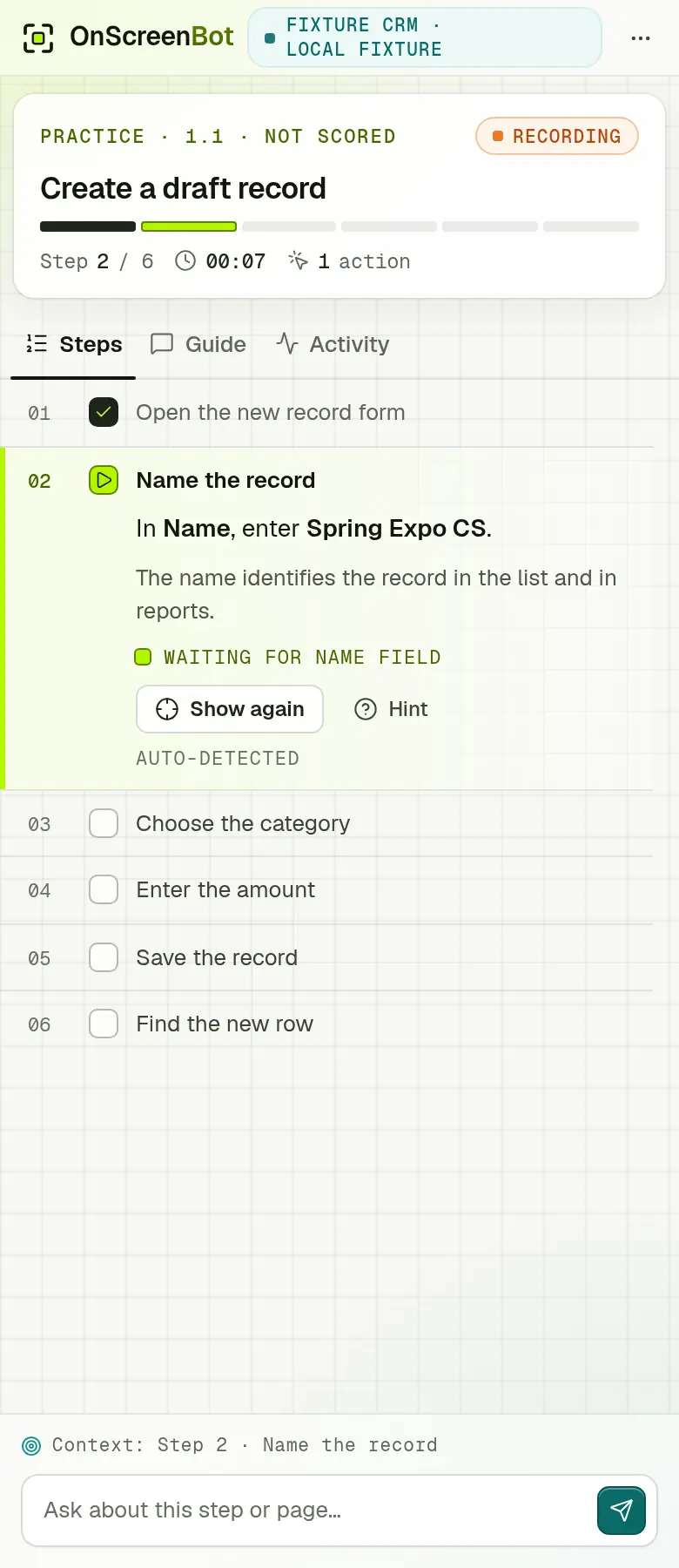
A test site during practice. OnScreenBot frames the Name field of the New record form, and a callout beside it says what to enter and why.
The OnScreenBot side panel at the same moment: step 2 of 6, Name the record, with the instruction, the reason, a Hint button and the remaining steps.

Practice on a sample test site: OnScreenBot frames the field and says what to enter and why.

  • No code changesWorks on your own web application. Nothing is installed in it.
  • Safe practicePractice runs on your test site, away from live customers.
  • Measured skillEvery assessment scores accuracy, time and actions.
  • Private by designNo keystrokes, field values or screenshots leave the browser.
Why it matters

Untrained staff cost you twice. Trained staff help the business grow.

A mistake costs once when it happens and again when someone has to find and fix it. People who know the product work faster, serve customers better and use the features you paid to build.

Without training

  • Mistakes reach customersA wrong price, date or setting goes live before anyone notices.
  • Experts turn into a help deskSenior staff and support answer the same questions every week.
  • New hires ramp up slowlyWeeks pass before people can work without someone watching.
  • Marketing guessesCampaigns and demos leave out features, or promise ones the product does not have.
  • New features go unusedReleases ship, and nobody changes the way they work.

With OnScreenBot

  • Practised before it is done for realPeople practise the exact task on your test site before they change a price, a date or a setting for real.
  • Answers inside the lessonEach step says what to do, with hints and corrections when people need them. On the Enterprise plan, Guided Mode answers questions about the current step.
  • A plan from the first dayRole paths with due dates give each new hire their lessons from day one, and progress shows where they stand.
  • Demos and campaigns that match the productMarketing practises each feature in your course the way customers will use it.
  • Each release ready to assignFasterApps updates your course with each release, and an admin gives the new lessons a path for the people affected.
Put a number on it

What does not knowing your product cost your team?

The estimate is worked out in your browser, from your own numbers.

The sliders start at example values: change them to match your team.

25

Learners, trainers, admins and the owner each use one.

2 h
$40
0%

Optional. It starts at 0; the break-even share needs no estimate.

Hours lost a year2,300 h
What those hours cost$92,000
OnScreenBot Business, 40 licences, billed yearly$1,188
Break-even share of the lost time1.3%

Business pays for itself if better training wins back 1.3% of that time.

An estimate from your own numbers and a 46-week working year, set against the plan price only; it is not a promise. Nothing you enter leaves this page.

OnScreenBot shows people what to do on the real screen, lets them practise it safely, checks what they can do, and keeps them current as your product changes.

How it works

What a team needs to learn your product.

Guided on the real screen

OnScreenBot frames the exact control on your own application and says what to do next and, where it matters, why.
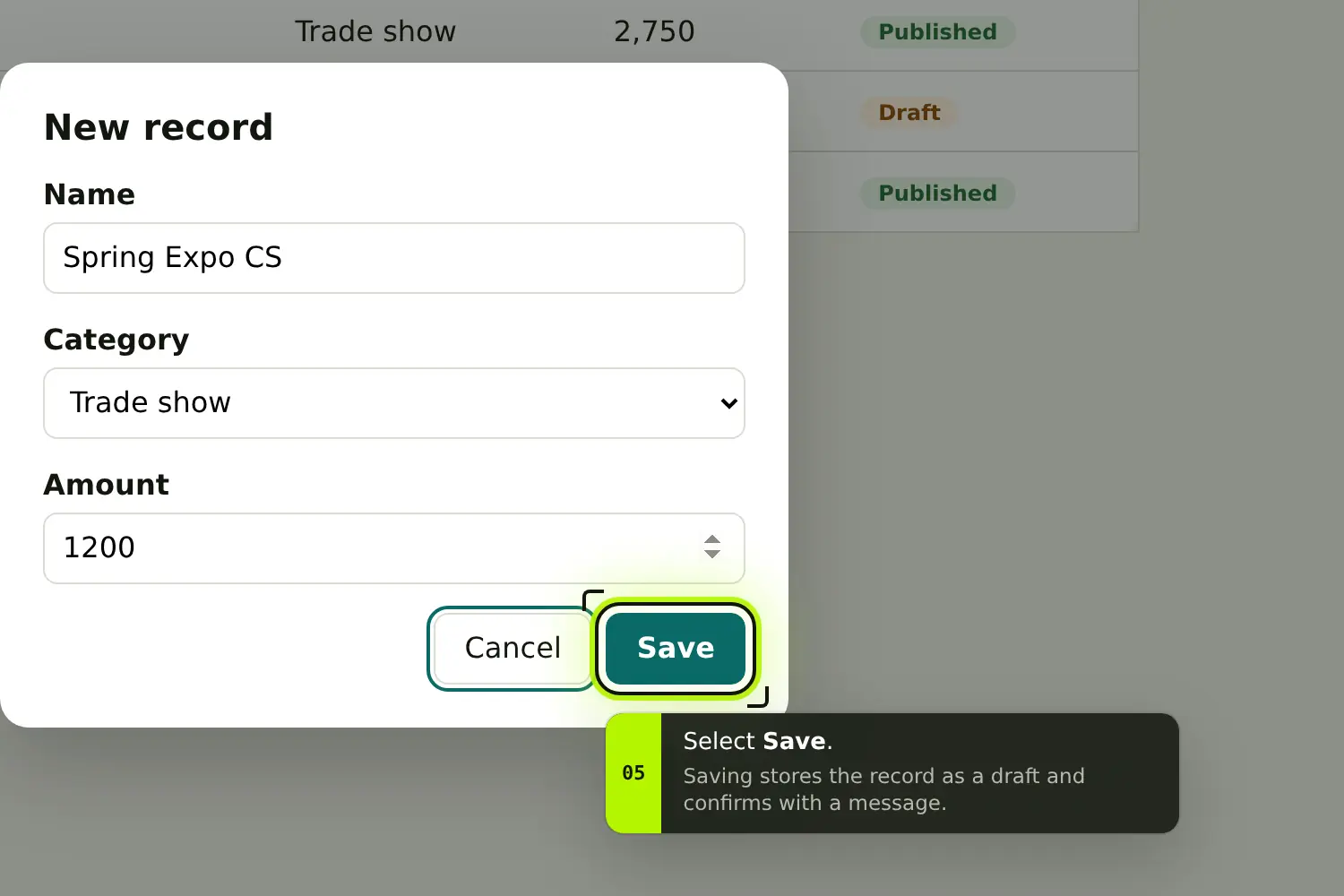
A close view of the test site: OnScreenBot frames the Save button, and the callout says that saving stores the record as a draft.

Practice on the real task

Most steps complete when the page shows the result, such as a saved record. Hints and corrections appear when people need them.
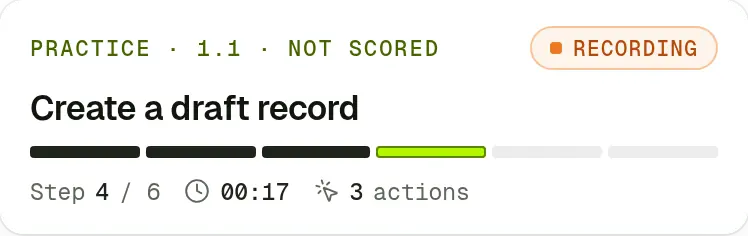
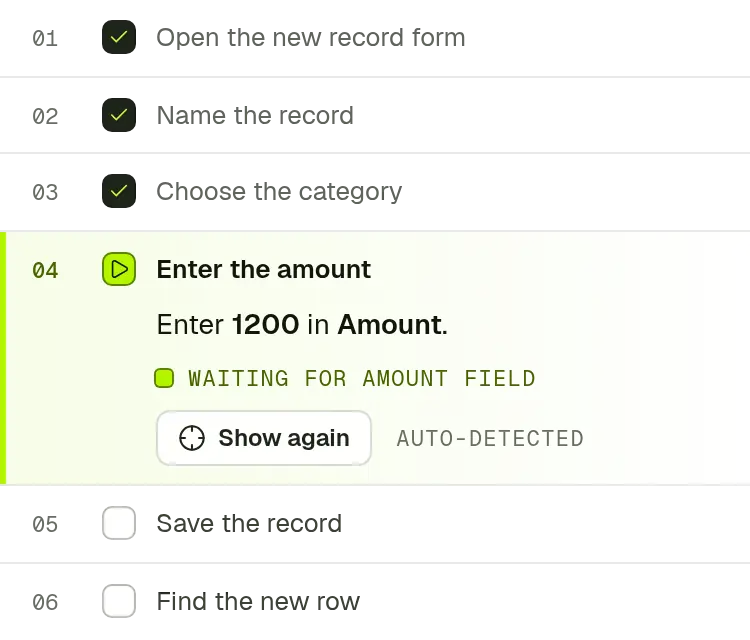
The practice card from the side panel: lesson 1.1, Create a draft record, not scored, recording, step 4 of 6, with the time and the number of actions.The side panel's step list: three steps done, and step 4, Enter the amount, waiting for the Amount field.

Practical assessments

No hints and no help. With the default scoring, a pass needs 80 points and every critical outcome; accuracy, time and actions all count.

Assessment 2.3Passed
Total
91.6 / 100
Pass conditions
  • Total at or above 80 (met)91.6
  • All critical criteria met (met)3 / 3
  • No technical interruption (met)None
Accuracy
95 of 100 criteria weight met
70 × the share of verifiable criteria weight met.
66.5 / 70
Time
3:55 active vs 2:30 reference
Full credit up to 3:08 (1.25×), falling linearly to zero at 7:30 (3×).
16.4 / 20
Actions
41 actions vs 30 reference
Full credit up to 36 (1.2×), falling linearly to zero at 75 (2.5×).
8.7 / 10

Progress you can act on

See who is overdue, stuck on a lesson or yet to start. Owners and admins can open a recent attempt step by step to coach someone.

Needs attention4 people
  • Iris KaurOverdueSales essentials path was due 15 Oct · 11 / 17 lessons passed · 2 days overdue
  • Jonah MbekiNot passed ×32.3 Publish and update a price · 64.0, 71.5, 76.0
  • Tomás RiveraInterrupted1.2 Create a customer record · Error page · not counted · awaiting review
  • Rafael CostaNot startedSupport essentials path · 0 / 17 lessons passed · assigned 8 Oct

Answers in context

On the Enterprise plan, Guided Mode answers questions about the current step from your course and points at the control it means.

More about Guided Mode

Guided ModeEnterprise

Where do I set who owns the record?

OnScreenBotKimi · 2 sources

Use the Owner field under the record name. The owner gets the follow-up tasks, so pick the person who handles the account, then choose Save draft.

On screen
  1. 1OwnerShowing
  2. 2Save draft
Sources
Record owners and teamsDrafts and publishing

Fair to learners

When the site itself fails, the attempt ends as Incomplete – technical and an issue opens for the admin. It is never counted against the learner.

Assessment 2.2Incomplete – technical

The site showed “Something went wrong” while saving. This attempt is not counted against you.

Technical issue opened for the admin

Sample data from a demo workspace.

For marketing teams

Marketing sells best what it has used.

Marketers write the campaigns, launch posts and demo scripts. OnScreenBot gives them hands-on time with each feature your course covers, so they describe what they have done themselves.

  • Learn each feature by doing it, on your test site.
  • Show what they know in practical assessments.
  • Get launch lessons as soon as the release is published.
  • On the Enterprise plan, ask Guided Mode while practising.
OnScreenBot for marketing teams
Assigned pathDue 24 Oct
Launch: Refund approvalsOn track
1 / 2 lessons passed
  • 3.3 Refund an orderPassed 94.2
  • 3.4 Approve a refundIn progress
GuidingPractice · 3.4 Approve a refund · step 3 of 7
Learning and progress

Fast-track learning. Watch skills improve.

Role paths turn onboarding into a plan with due dates. Every assessment attempt is kept with its score, time and actions, so you can see improvement after each retake and step in early.

Learners2413 in progress · 2 not started
Completed938% of learners
First-attempt pass71%Graded first attempts
Median score86.2Graded attempts · pass mark 80
Licences26/ 10074 free · Enterprise

Fast-track

Paths by role

Support, sales or marketing: each training role gets the lessons it needs, assigned automatically with a due date.

Learn on your own screens

Lessons run in your own application, on its test site, so there is nothing to translate from a video to the screen.

Retake and improve

People can practise again and retake assessments. Each attempt is kept with the course release it used.

Track

Scores you can compare

Accuracy, time and actions for every attempt, against reference times you can tune for your team.

Who needs help

The overview lists people who are overdue, have not passed after three attempts, were interrupted or have not started.

Step-by-step review

Owners and admins can open a recent attempt’s timeline to coach someone. Each opening is recorded in the audit log.

Results · Grace Taylor2 attempts
2.3 Publish and update a price
  1. Attempt 215 OctPassed92.5
    Accuracy
    70.0 / 70
    Time
    15.1 / 20
    Actions
    7.4 / 10
  2. Attempt 113 OctNot passed52.5

    Critical outcome missed: customers see the new price. Time and actions count only when every critical outcome is met.

Sample data from a demo workspace. A retake after a missed critical outcome.
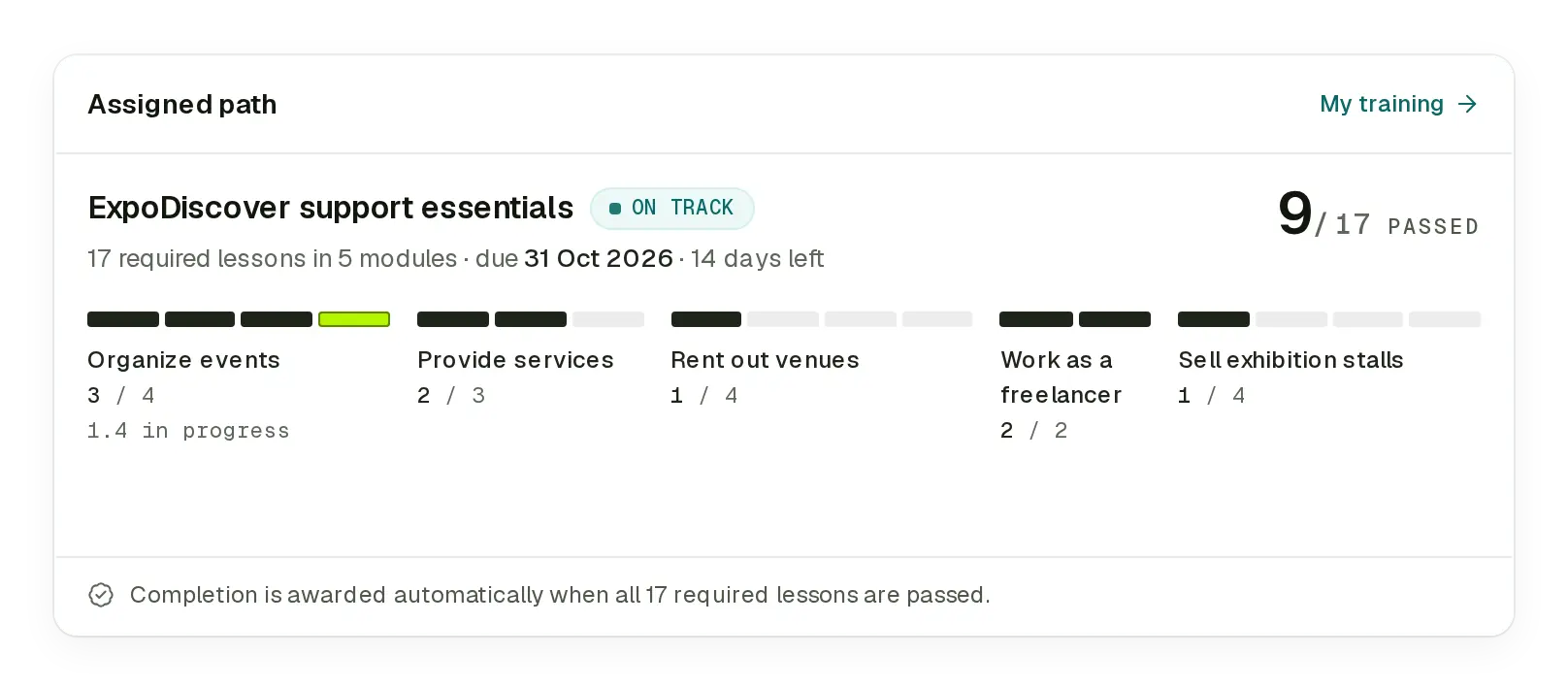
A learner's assigned path: 9 of 17 required lessons passed, on track, due 31 October, with progress for each of the five modules.
And what the learner sees: their path, module by module.
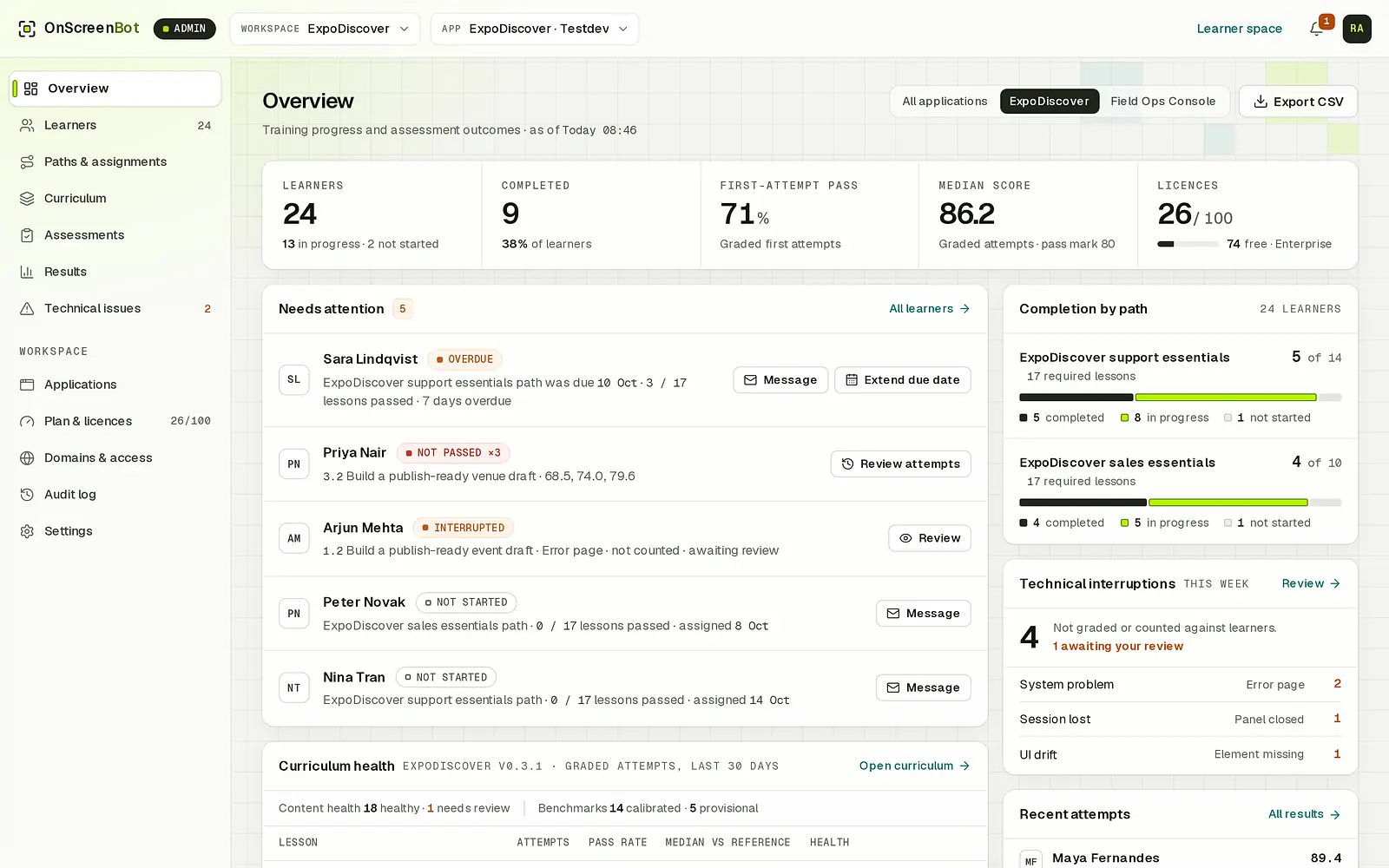
The admin overview: key figures for learners, completions, first-attempt passes, the median score and licences, the people who need attention, and completion by path.
The admin overview of a demo workspace: key figures, the people who need attention and completion by path. Names and figures are sample data.
Release readiness

Ship every week. Keep every team current.

Fast product teams change screens, flows and features constantly. OnScreenBot versions your courses with your product, so people can learn a change before they meet it in front of a customer.

  • Courses are versioned. An admin publishes each release, and past attempts keep the release they used.
  • Publish the update and give its new lessons a path for the people affected.
  • Content health flags the lessons a screen change has affected, so they are fixed before more learners get stuck.
  • FasterApps updates your courses from your app’s source code with an AI coding agent, so lessons keep pace.
How release readiness works
Course releasesCustomer portal
  1. v0.5.0Draft
    Made available by FasterApps · 16 OctValidated on the test site · no warnings · Not assigned until published
  2. v0.4.0Published
    Published by Hannah Ortiz · 30 SepValidated on the test site · no warnings · Used by 24 learners
  3. v0.3.1Retired
    Published 12 Sep · retired 30 Sep by Hannah OrtizValidated on the test site · Results are kept
Content healthv0.4.0
  • 3.1 Create an invoiceHealthy
  • 3.2 Send a payment reminderNeeds review
    send-reminderNot found 5 / 9
  • 3.3 Refund an orderHealthy
FoundFound by a fallbackAmbiguous or not found

The Send button moved into the Actions menu in the last app release. Lesson 3.2 needs review.

Sample data from a demo workspace.

Privacy

Training data, not surveillance.

OnScreenBot records only what training needs: the lessons and assessments a learner runs, and the questions they ask Guided Mode.

Only during training

Recording runs only during a lesson or assessment the learner starts, with a visible indicator, and when they ask Guided Mode a question.

No page content leaves the browser

No keystrokes, field values, page text or screenshots. Only activity named in the course’s own words: the pages, the controls used, whether a field was filled, and timing.

People see their own data

Every learner can view and export their own data.

Reviews are on the record

Opening someone’s step-by-step timeline is logged. Only workspace owners and admins can do it, and FasterApps support only while acting as an admin, recorded under both names.

Pricing

Plans that grow with your team.

Every plan includes lessons, practice, assessments and tracking. Enterprise adds Guided Mode.

BillingYearly billing saves $120 a year

Startup

For a first team learning one application.

$49per month

billed yearly · $588 a year

10 licences · 1 domain · 10 modules

Business

For growing teams across support, sales and marketing.

$99per month

billed yearly · $1,188 a year

40 licences · 1 domain · 20 modules

For larger teams that want an AI assistant beside every lesson.

$199per month

billed yearly · $2,388 a year

100 licences · 2 domains · 50 modules

Start free trial

The free trial does not include Guided Mode.

Every workspace starts with a 14-day free trial: 10 licences · 1 domain · 10 modules, no Guided Mode, no payment details. FasterApps builds your first course from your application’s source code. Ask for a plan in Plan & licences whenever you are ready and the FasterApps team sets it up.

Give your team the product knowledge your customers expect.

Start a 14-day trial, or talk to us about training your team on your own application. FasterApps builds your course from your application’s source code.

14-day free trial · No payment details · Works in Chrome